I got a request from a Default Folder X user yesterday, asking if I could add a feature to limit the length of the default filename supplied in Save As dialogs. Apparently, the cloud services and backup software that he and his colleagues use can’t handle filenames longer than 45 characters, so he wants to make sure they don’t save files with names longer than that. That’s a pretty unfortunate limitation of the software they’re using (I mean really, in 2024?), but I’m all for avoiding stupid problems.
Default Folder X has a flexible, AppleScript-based method for handling customized default folders and filenames in Save dialogs. Yeah, I know AppleScript is old and crufty, but it’s available on every Mac, can interoperate with other apps, and allows you to cobble together just about anything, so it’s a good solution here. Anyway, when a file dialog appears on the screen, Default Folder X looks for and runs special AppleScripts if they’re present, allowing you to use any logic you want to determine the starting location (the “default folder”) for a file dialog, and the name of the file suggested in Save As dialogs.
The AppleScripts should be located in this folder:
where the ‘~’ character denotes your home folder. Default Folder X looks for scripts with predetermined names, depending on their purpose:
getDefaultFilename.scpt – modifies the suggested filename in Save As dialogs
getDefaultFolder.scpt – specifies the default folder for an Open or Save dialog
Note that the scripts must be saved with those names in order for them to work. If you want a script to only run in the Open and Save dialogs of a single application, put it in a subfolder with the same name as the app. For example, to have scripts that only run in Safari, save them in:
The implementation details (the name of the AppleScript handler and the arguments that Default Folder X passes to it) are included at the beginning of each of these sample scripts:
OK, back to the task at hand. In this case, we want to provide a “getDefaultFilename” handler that truncates the default filename in Save dialogs to no more than “maxLength” characters.
Here’s the AppleScript:
on getDefaultFilename(appName, suggestedName, fileExtension)

  -- Specify our maximum filename length
  set maxLength to 45

  -- Make sure the filename extension isn't counted
  set addExtension to false
  if fileExtension is not "" and suggestedName ends with fileExtension then
    set suggestedName to text 1 thru -((count fileExtension) + 2) of suggestedName
    set addExtension to true
  end if

  -- Truncate the filename
  if length of suggestedName is greater than maxLength then
    set newName to text 1 thru maxLength of suggestedName
  else
    set newName to suggestedName
  end if

  -- Add the extension back on if appropriate
  if addExtension is true then
    set newName to newName & "." & fileExtension
  end if

  -- And give the name to Default Folder X
  return newName

end getDefaultFilename
Enter the code above in Script Editor and save it as an AppleScript script or download GetDefaultFilename.zip. Save the “GetDefaultFilename.scpt” file in this location:
Each time a Save As dialog appears, it will magically truncate any filenames longer than 45 characters. Note that you can still edit the name afterwards in the Save dialog if you don’t like the one created by the script.
Credit Where Credit is Due
This scheme originated with an idea from Jason Snell (of Six Colors and The Incomparable fame) when he needed to customize the way Default Folder X worked in his podcasting workflow. I later expanded it as requests came in for customized filenames as well, and Bo Engelbrecht’s email reminded me that I’d never blogged about those updates. Thanks Jason and Bo!
The third beta build of Default Folder X 6.1 is available, adding support for the Warp terminal app and fixing several bugs that occurred in the previous beta (and in Default Folder X 6.0.8).
The other notable change is that this build won’t trigger Sequoia’s screen recording reminders nearly as often. Sequoia puts these up several times a day if an app is capturing screen images, which Default Folder X does as part of its normal functioning. Contrary to what this alert implies, DFX isn’t doing anything nefarious, just making its manipulations of Open and Save dialogs less jarring. The details are here. I’ve reduced the frequency of the reminders by abandoning Default Folder X’s automatic detection of dark / light mode in individual Open and Save dialogs, which required capturing an image from the screen.
To explain a bit: Some apps (including QuickTime Player, Affinity Photo, Affinity Designer and Rogue Amoeba Fission) let you change their appearance separately from the system-wide light / dark mode setting. There’s no generic way for another app like Default Folder X to tell which appearance they’re using other than taking a visual snapshot of one of the app’s file dialogs and checking to see whether it’s dark or light. I know that may sound stupid, but that’s the way macOS works – and honestly, for most normal, stand-alone applications this capability isn’t necessary, so I can understand why Apple doesn’t provide any sort of API to query an app’s appearance mode.
Anyway, without that information, Default Folder X may end up with the wrong light / dark mode for its toolbar around a file dialog, as well as for some of the controls within it – like this:
It doesn’t change the functionality that you get from Default Folder X, but it’s a bit jarring – and ugly. So, that’s the tradeoff – to stop Sequoia from whining at you every day, Default Folder X has to be less capable (and yes, I’ve filed a bug with Apple, but unless they get a lot of complaints I don’t think they’ll change this “feature” in Sequoia).
Default Folder X attempts to detect these situations using a different, application-specific method, and will currently do the right thing with the above-mentioned apps (QuickTime, Affinity apps and Fission). If you encounter this mismatch in other apps, let me know at DefaultFolderX@stclairsoft.com and I’ll do my best to find a way to detect the appearance for that app.
Grumble.
At any rate, a full change history and download links for Default Folder X 6.1b3 are available on the Beta Testing page.
There’s a new public beta of Default Folder X 6.1 available! In addition to updated compatibility with macOS 15 Sequoia, it improves support for web URLs that have been added as favorites. It also fixes a couple of graphical bugs.
The most useful change is the ability to go to URLs in your favorites using Quick Search. Type a bit of the name of a favorite and hit Return to open it in your browser.
Display of web URLs is better in the Favorites section of Default Folder X’s settings, and an issue with selected text appearing in the wrong color has also been fixed there. Flickering of previews in Open dialogs has also been corrected.
Note that you don’t need to be running Sequoia to use the beta – it will run on macOS 11 Big Sur and later. A full list of changes and download links is available on the Default Folder X Testing page.
Version 6.0.8 of Default Folder X is available now, delivering several new features, plus bug fixes for recently reported problems. The big changes are playable previews of video and audio files right below Open dialogs, and the ability to store web URLs in your Favorites.
While you could always use QuickLook to preview video and audio, doing so pops up a separate window with its playback volume always set to maximum. In contrast, Default Folder X’s previews let you see the length of a recording as soon as you select it, they remember your previous volume setting, and let you quickly scrub through audio and video without opening a separate window. If you spend lots of time working with audio or video, these little details make a difference.
Adding web URLs to your Default Folder X Favorites lets you open them quickly, including assigning keyboard shortcuts to them. I really wanted this myself to access web dashboards that I use often but don’t want to leave constantly open in my browser. So there you go 🙂 Oh, and if you’ve got the Default Folder X settings window open, you can just drag URLs straight from your browser to the Favorites list.
The other new “feature” is a warning when you run Default Folder X on a system that it doesn’t support. Folks who don’t install new updates of Default Folder X right away or who are running beta versions of upcoming macOS releases will run into these alerts. Hopefully they’ll resolve the confusion, disorientation and general angst people feel when Default Folder X is missing from their Open and Save dialogs. A button takes you to a web page where you can download a newer version that works with the OS you’re running.
Default Folder X 6.0.8 also includes a few bug fixes for Quick Search, keyboard shortcuts and issues when displaying long filenames. The full change history and download links are available on the What’s New page.
Last week, Apple dropped the first developer preview of macOS 15 Sequoia. The current release of Default Folder X – version 6.0.7 – does not support Sequoia because, prior to last week, I didn’t have any more information about it than you did.
Now that the first build of Sequoia is out, I’ve done some testing and made a few necessary adjustments. A new Sequoia-compatible public beta of Default Folder X is available on the Default Folder X Testing page. If you’re running Sequoia, this will get you back up and running with DFX. As usual, keep an eye out for updates because pre-release macOS builds are a moving target. More changes will probably be necessary as Sequoia progresses towards completion.
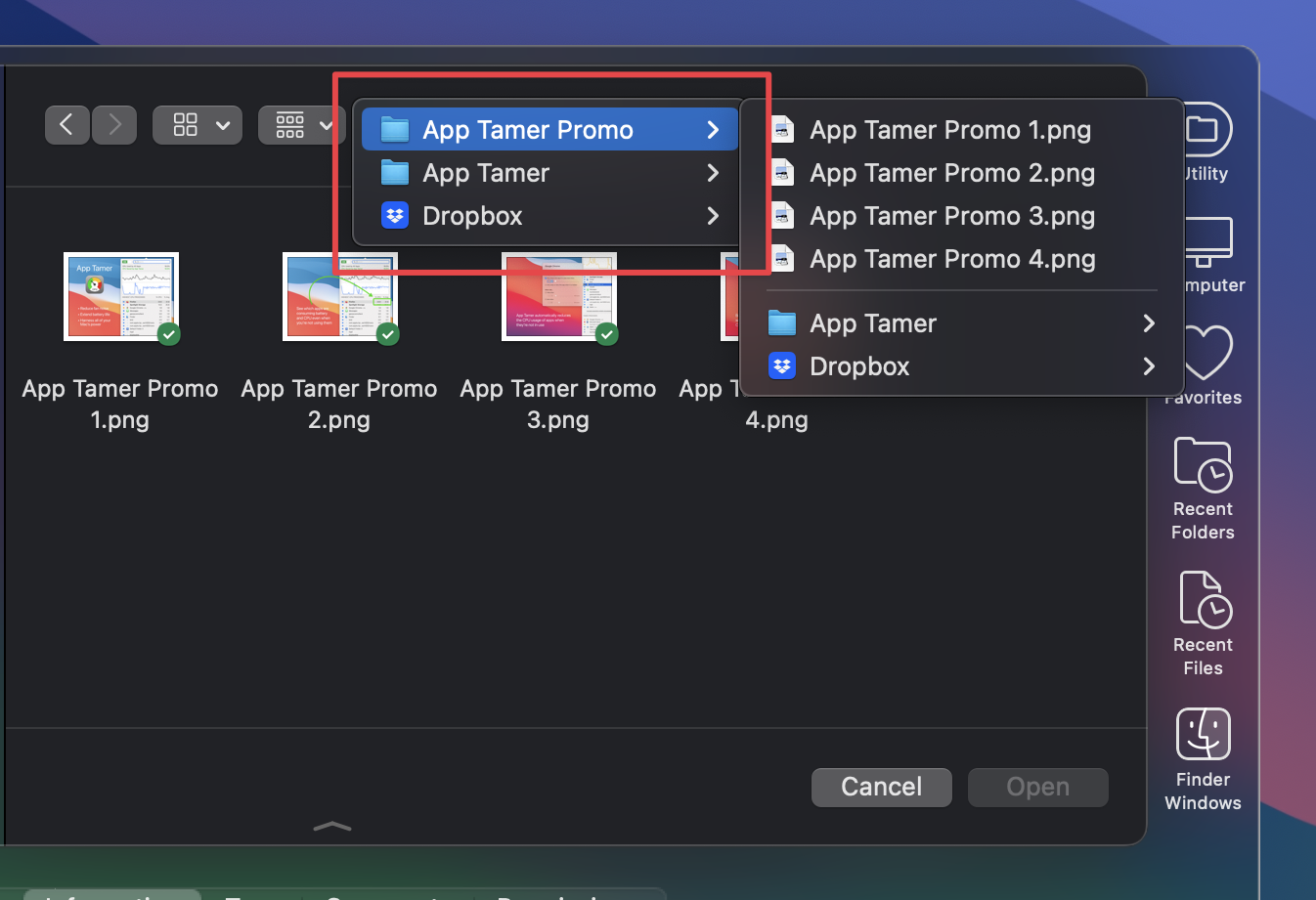
Default Folder X 6.1b1 also sports some new features that I’ve added based on user requests and my own personal needs. You can now preview audio and video files right in an Open dialog, even if you’re not using Column View.
And you can save web URLs as favorites, allowing you to quickly open often-used websites from Default Folder X’s menu or by using a keyboard shortcut. Display of very long filenames and their metadata has also been improved, and a few shortcomings (bugs, to be less generous) have been fixed.
Version 1.8.8 of Jettison was released today, adding a new option for mounting disks while also fixing some annoying issues.
When you hold down the Command key, the “Mount” command in Jettison’s menu becomes “Mount and Open.” As you’d expect from the name, selecting a disk will not only mount it so it’s available for use, but will also open a new Finder window showing its contents. This is a handy shortcut if you want to mount an offline disk and immediately get to work with it.
On the bug-fix side of things, this release fixes an issue that could wake up the display while Jettison ejected external disks. This didn’t cause problems with sleep, but could be confusing when manually putting a Mac to sleep. You’d invoke sleep, the screen would go dark and then would immediately wake back up, then it’d go black again and the machine would finish going to sleep. Just weird.
Version 1.8.8 also addresses a problem with disks not mounting properly if they’re encrypted but already unlocked, and improves error messages when failures occur while mounting encrypted disks. It also gives a more helpful error message when you try to manually mount an encrypted drive whose password isn’t in your keychain.
As always, full release notes and the downloadable update are available by choosing “Check for Updates” from Jettison’s menu in your menu bar, or from the Jettison – What’s New page.
Version 6.0.7 of Default Folder X is available now. It fixes a number of issues that occurred when using Open and Save dialogs in certain situations and is recommended for all Default Folder X 6 users.
It also adds a new setting – currently only available via a Terminal command – to change the way arrow keys work in its Quick Search window. By default, the left and right arrows navigate into a folder when it’s selected in the Quick Search results.
This works well when navigating the results, where up and down arrows move the selection up and down the list, and the right arrow moves “into” a selected folder so you can search just within that folder. However, this means the arrow keys are not available for moving back and forth in the search field if you want to edit your search string.
If you’d like the left / right arrows to instead move the text cursor in the search field, run the Terminal application (you’ll find it in /Applications/Utilities), paste in the command below, then hit the Return key on your keyboard:
Once you’ve done that, you can move into and out of folders in the search results using Tab and Shift+Tab in place of the left and right arrow keys. To change the setting back to its default, just replace the “YES” in the command above with “NO”.
If you’re already running Default Folder X, choose Check for Update from Default Folder X’s menu in your menu bar to get the new version. If not, head to the What’s New page for download links, as well as detailed release notes.
So, in the last release of Default Folder X I added a somewhat complex (and relatively slow) feature to determine the correct name, location and icon for the Dropbox, OneDrive, Google Drive and Box Drive folders. It was only intended to be used for the top-level folders, so its slower speed wasn’t really an issue – it’s used infrequently.
But (there’s always a “but”, right?) when I deployed this new code within Default Folder X, it was inadvertently being called for every file and folder on any of those services. What resulted was a significant slow-down in Default Folder X’s menus, Quick Search, and any other place that the user-facing “display names” of items were shown in bulk (though only if the items happened to reside within one of those cloud services’ folders, so some of you may not have noticed an impact at all). Version 6.0.6 fixes this bug, and I even made that new code faster as well.
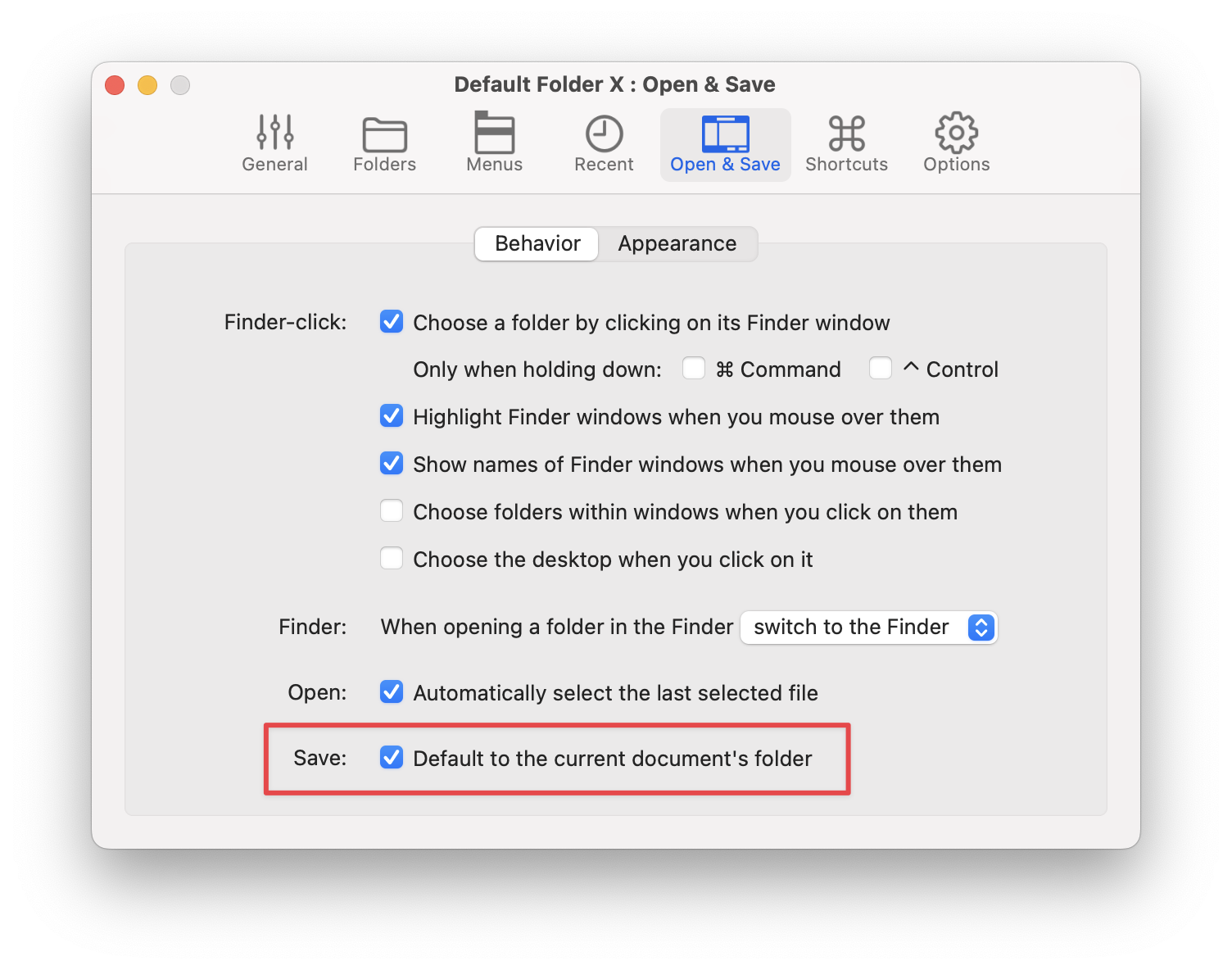
In addition, with some learnings gleaned from dealing with OneDrive again, I also remedied a long-standing problem with Microsoft Word. When you’re editing a document that’s stored in OneDrive, Word doesn’t internally represent that document as being on the local machine, but instead references it via a cloud-based URL. That caused problems for Default Folder X’s “default to the current document’s folder” feature, because as far as Word is concerned, there is no folder for that document on the Mac you’re using – it’s in the cloud.
With this release, Default Folder X translates Word’s OneDrive URL back into a location in the OneDrive folder on your Mac, so the “default to the current document’s folder” feature now works correctly.
Anyway, if you’re already running Default Folder X, just select “Check for Update” from its menu to get the new version. If not, you can download it and read the release notes on the Default Folder X What’s New page. And yes, the update is free if you’ve already bought a Default Folder X 6 license (thank you!).
Version 6.0.5 of Default Folder X is now available, delivering a number of new features and fixes for our award winning utility for navigating macOS Open and Save dialogs and the Finder.
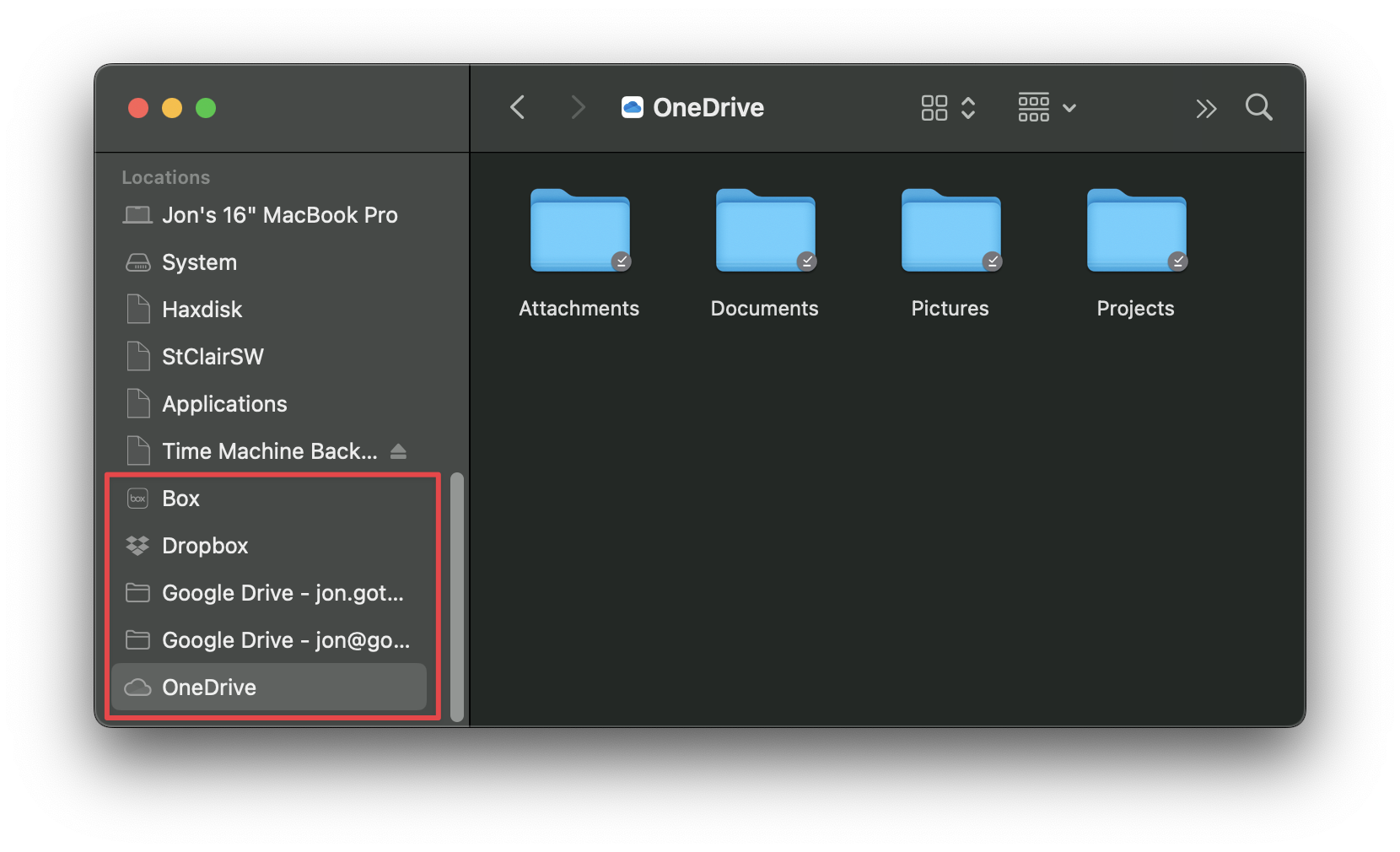
We’ll need a little digression here to explain the first change. “File Provider” based cloud services such as OneDrive, Dropbox, Google Drive and Box all create their synced folders in a hidden location within your Library folder (in ~/Library/CloudStorage/ to be precise). The Finder then represents them the same way it does iCloud Drive, as disembodied “Locations” in the sidebar and in its “Go” menu.
In previous releases, Default Folder X would show these cloud service folders in their real locations. For example, Dropbox would be in ~/Library/CloudStorage/Dropbox/. While that’s accurate and arguably helpful at times, it wasn’t consistent with what you saw in the Finder, so it could be confusing for some folks. Version 6.0.5 of Default Folder X corrects this by mimicking what the Finder does. Cloud services are now shown as top-level locations, rather than being contained within the CloudStorage folder.
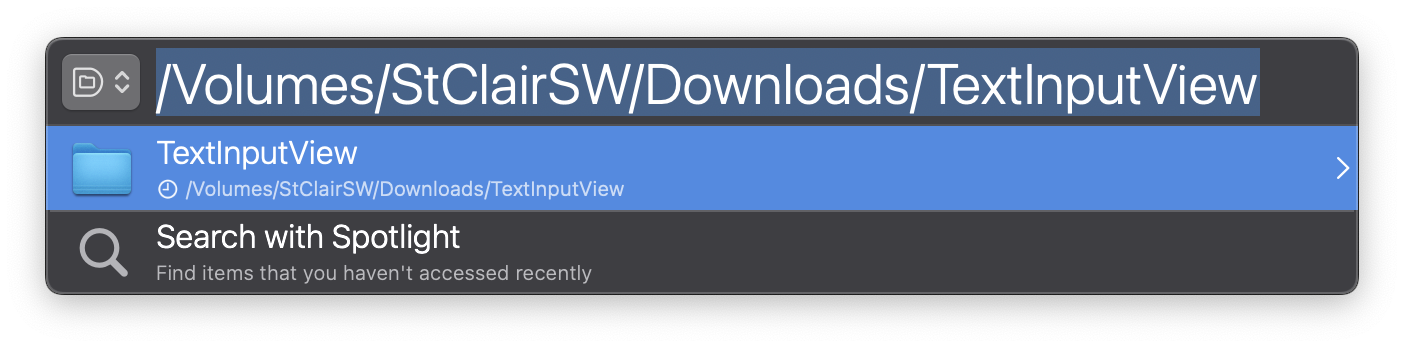
A less confusing change in Default Folder X 6.0.5 is the ability to paste a whole path into the Quick Search window. This does exactly what you think it’d do – it takes you to that location. If you’re using a file dialog, the dialog will switch to show the files and folders at that location. If you’re not, Quick Search will open that folder or file in the Finder. Pretty straightforward and very quick if you’re a person that’s dealing with paths a lot.
In addition, Default Folder X’s Finder drawer and Drag Zone now “follow” files and folders that you’ve dragged into them. If you add a folder to the drawer, then later rename it or drag it to a new location, the reference to it in the drawer will still work. Previously, Default Folder X would just remove the item from the drawer or drag zone once it could no longer find it at its previous location and / or name (which was admittedly kinda lame if you left stuff in the drawer for long periods).
There are also a number of bug fixes, plus improved compatibility with QSpace and Alfred.
You can get full details on the Default Folder X release page, or by choosing “Check for Update” if you’re already running Default Folder X. This update is free if you’ve purchased a license or upgrade for Default Folder X 6. If you’re still running Default Folder X 5.7.8 or earlier, there’s an upgrade fee that’s detailed on the Default Folder X Upgrades page.
Two new releases of Jettison, our little utility for ejecting external disks when your Mac sleeps, have delivered a host of changes. Outwardly, Jettison no longer shows hidden volumes like Update and Macintosh HD – that will reduce confusion. It also lets you quickly open a disk in the Finder by holding down the Command key (the “Eject” menu becomes “Open”). And error messages are more informative.
Under the hood, there are bigger changes which eliminate problems when the system wakes and then goes back to sleep very shortly thereafter, it handles unlocking of encrypted drives much better, and performs numerous other disk-handling operations more smoothly.
A full list of the changes in versions 1.8.6 and 1.8.7 is available on the Jettison release page, or by choosing “Check for Update” if you’re already running Jettison on your Mac.